This is a simple collection of resources that I use for hosting the blog.
1. Hosting with Quartz
Please refer to How to publish Obsidian notes with Quartz on GitHub Pages - Fork My Brain.
Link(s) may helpful
2. Image Uploading using Cloudflare R2
Please refer to (Chinese) 使用Cloudflare R2 + PicGo实现免费图床 - Indie Hacker Tool .
Link(s) may helpful
(Chinese) Manually install PicGo Plugins when plugin store can not load
(Chinese) GitHub repo of picgo-plugin-s3
3. Auto Redirect
When building GitHub Pages with Quartz, the default link is https://yourusername.github.io/my-notes, what we want is https://yourusername.github.io.
What you need is setting up a redirect page in https://yourusername.github.io, redirect the request to https://yourusername.github.io/my-notes.
For example:
<!DOCTYPE html>
<html lang="en">
<head>
    <meta charset="UTF-8">
    <meta name="viewport" content="width=device-width, initial-scale=1.0">
    <title>Redirecting...</title>
    <script type="text/javascript">
        // Check if the current page is not already at the redirect URL
        if (window.location.pathname !== '/my-notes') {
            window.location.href = "https://yourusername.github.io/my-notes";
        }
    </script>
</head>
<body>
    <p>If you are not redirected automatically, <a href="https://yourusername.github.io/my-notes">click here</a>.</p>
</body>
</html>
generated by ChatGPT
4. Hosting in Cloudflare Pages
Viewers in certain countires/regions may not able to access GitHub Pages, hosting a mirror site in Cloudflare Pages may solve the problem.
Please refer to Quartz: Hosting.
5. Setting up Google Analytics
Setting up Google Analytics for One Site
-
Create a Google Analytics account.
-
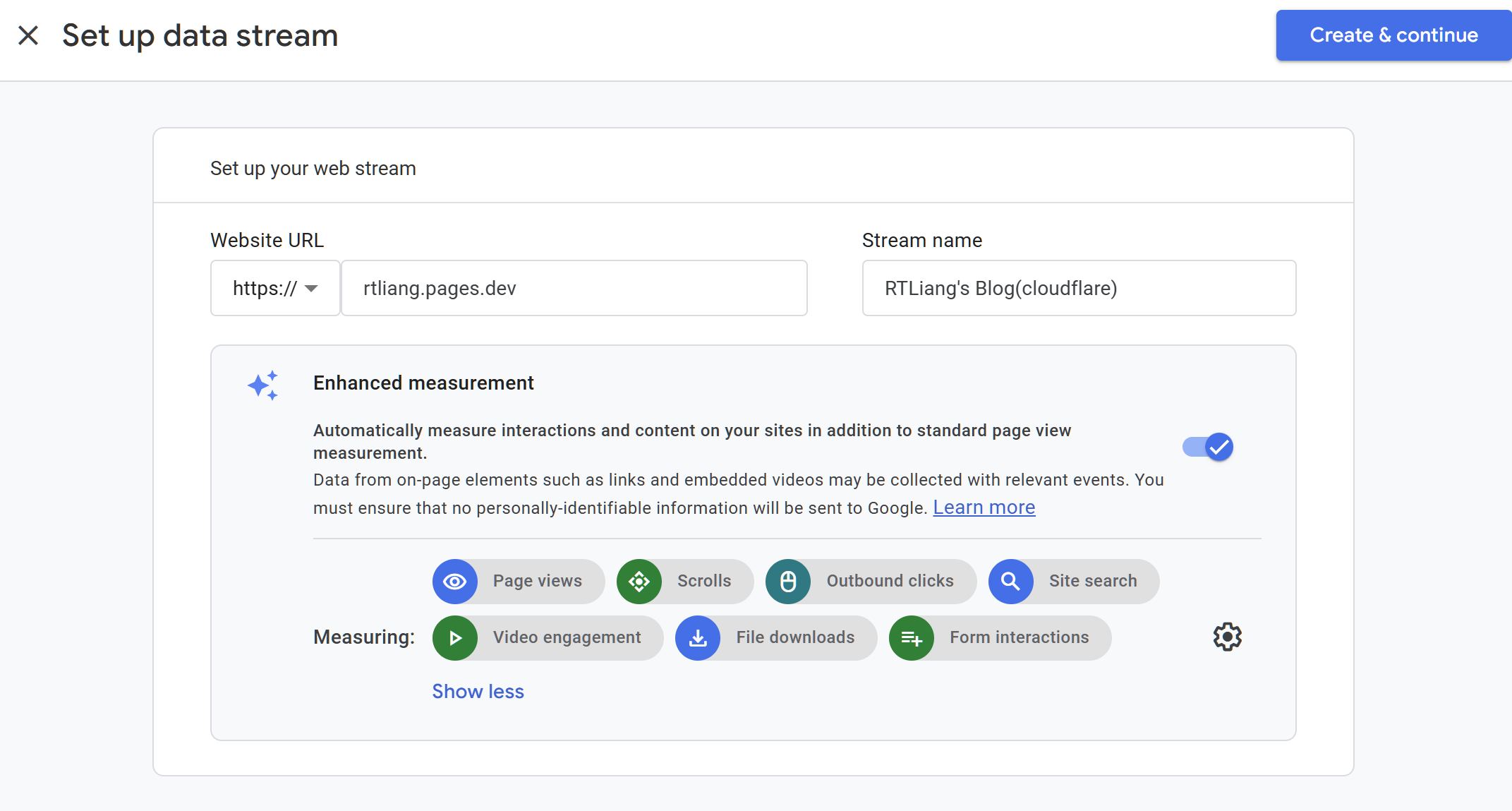
Set up a data stream.
-
Copy Measurement ID (
G-XXXXXXXXXX) toquartz.config.tsand sync the code using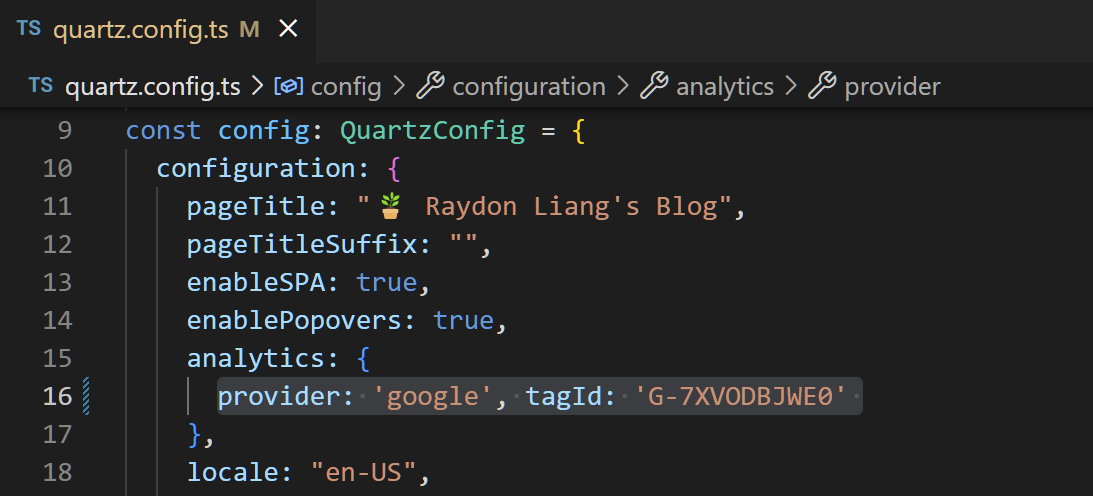
npx quartz sync-
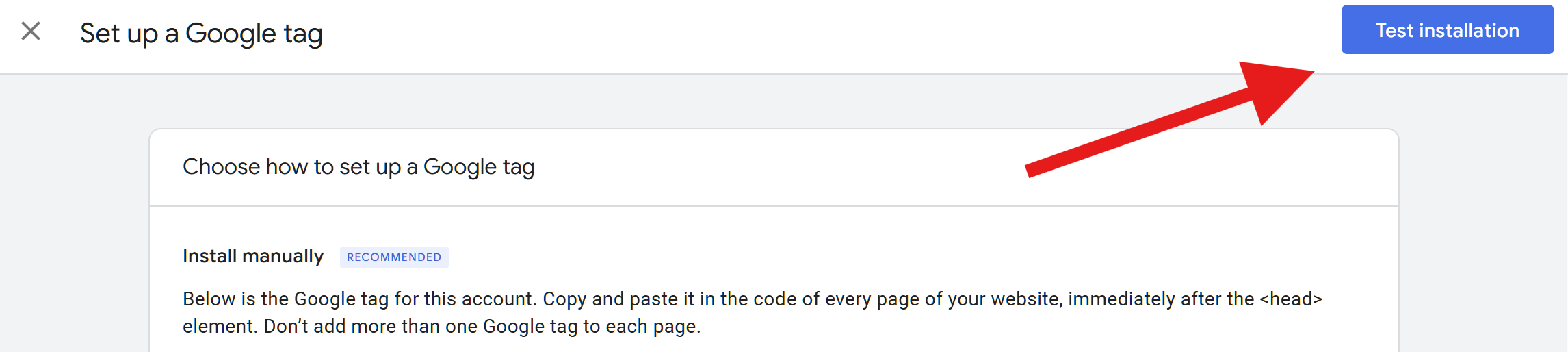
Test installation.
-
If everything goes well, a checkmark shows in the bottom, and you are good to go.

(Optional) Setting up Google Analytics for Multiple Sites
If you are hosting your blog on multiple platforms(e.g. GitHub Pages and Cloudflare Pages), you may need to track multiple domains with one Measurement ID.
-
Go to
Web stream details→Configure tag settings.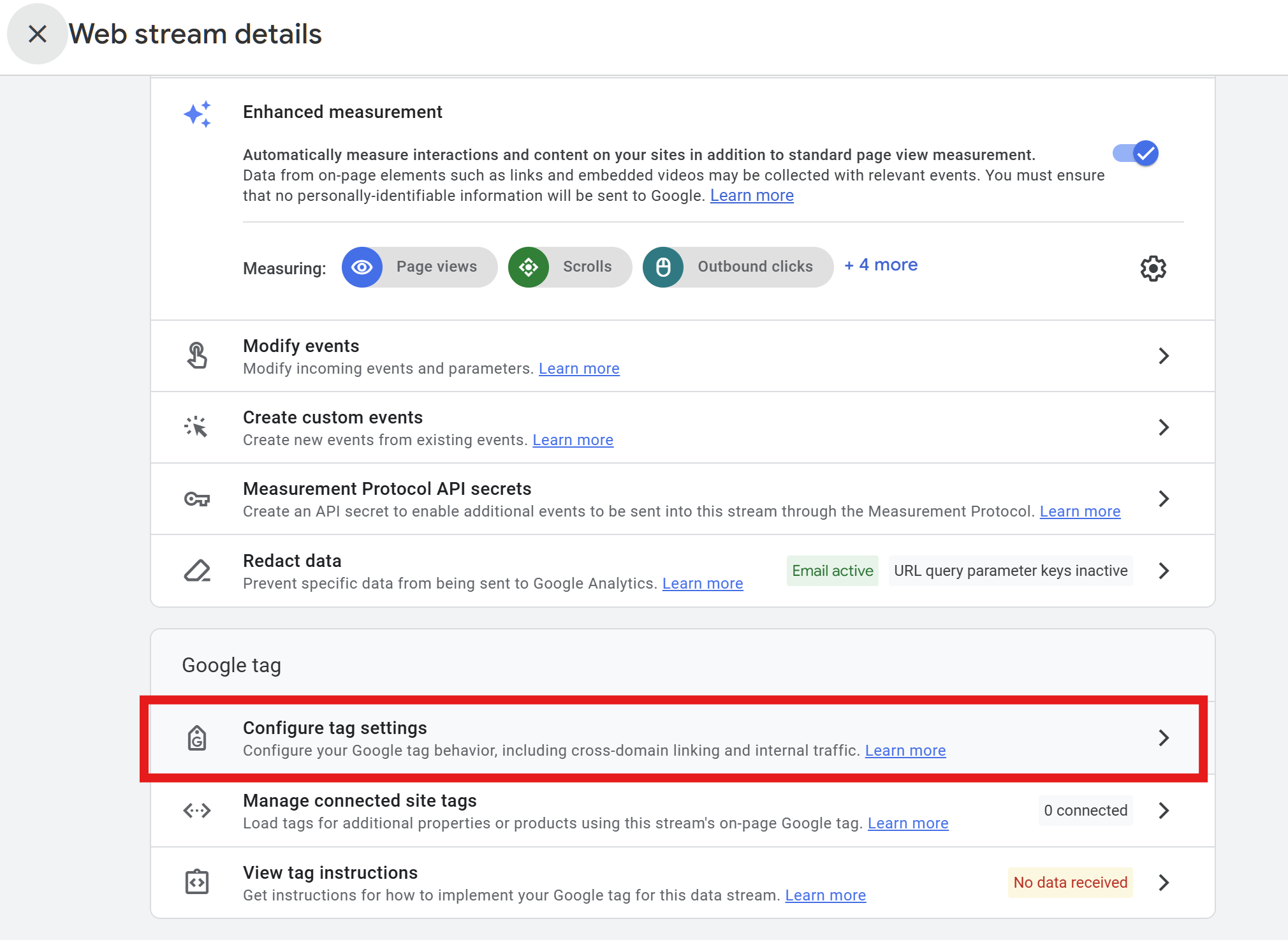
-
Go to
Configure your domains.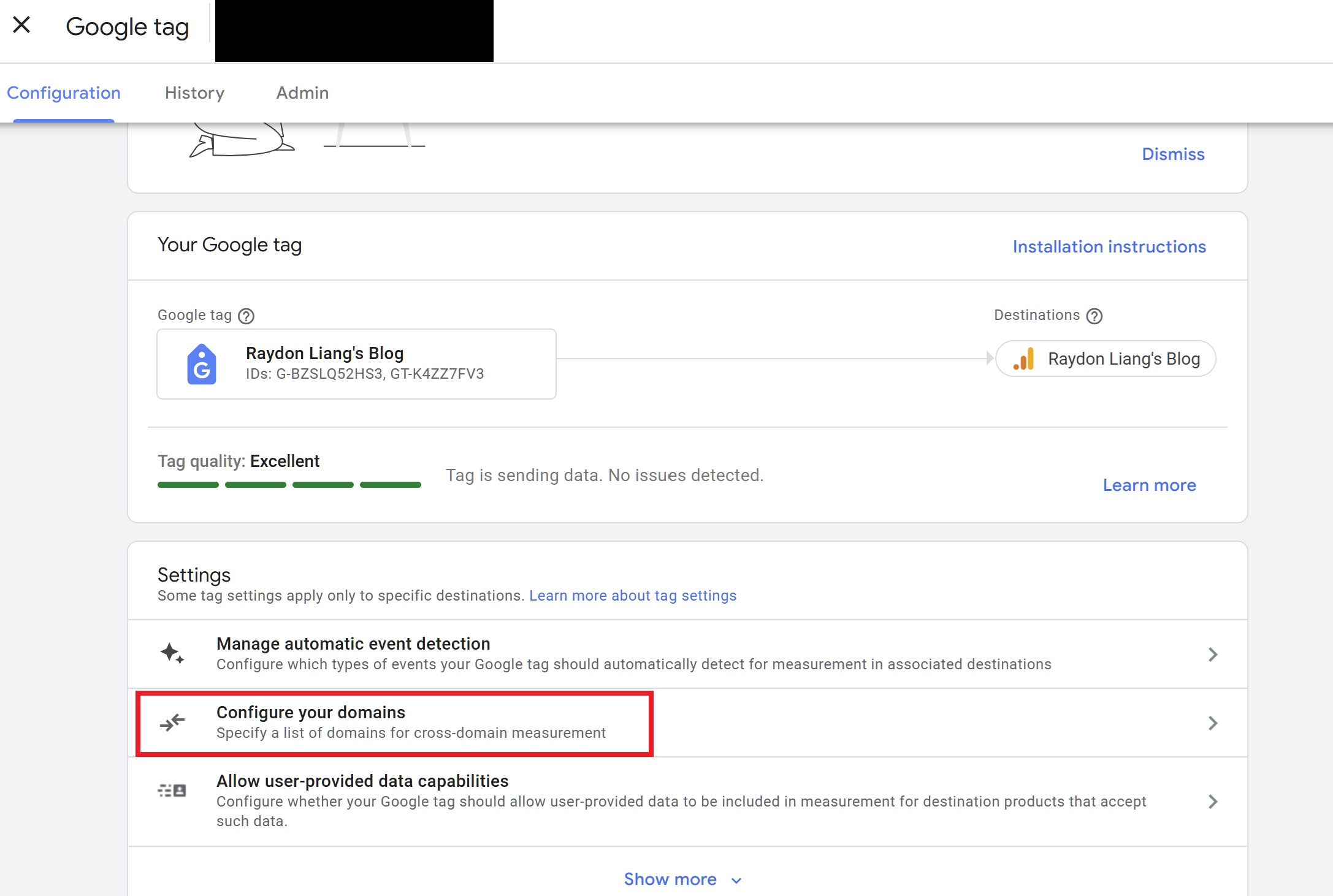 sensitive info is masked
 -
Add domain(s) in
Cross-domain Linking Configurationand save.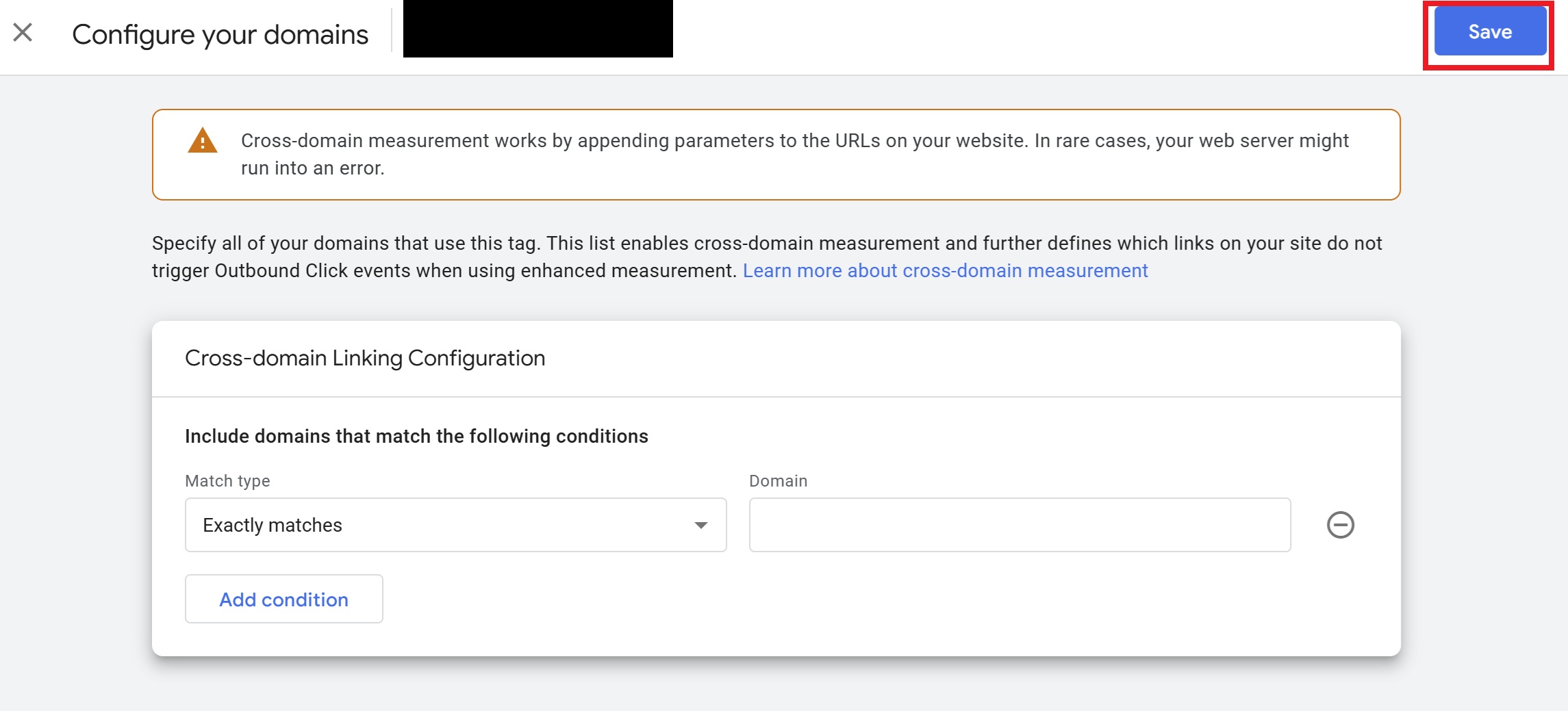 sensitive info is masked
(Optional) Filtering different sites in Google Analytics
Once you setup one Measurement ID with multiple sites, it is important to filter different sites to analyze traffic. The following tutorial shows how to do it.
-
Go to Google Analytics
Reportspage and clickAdd comparison.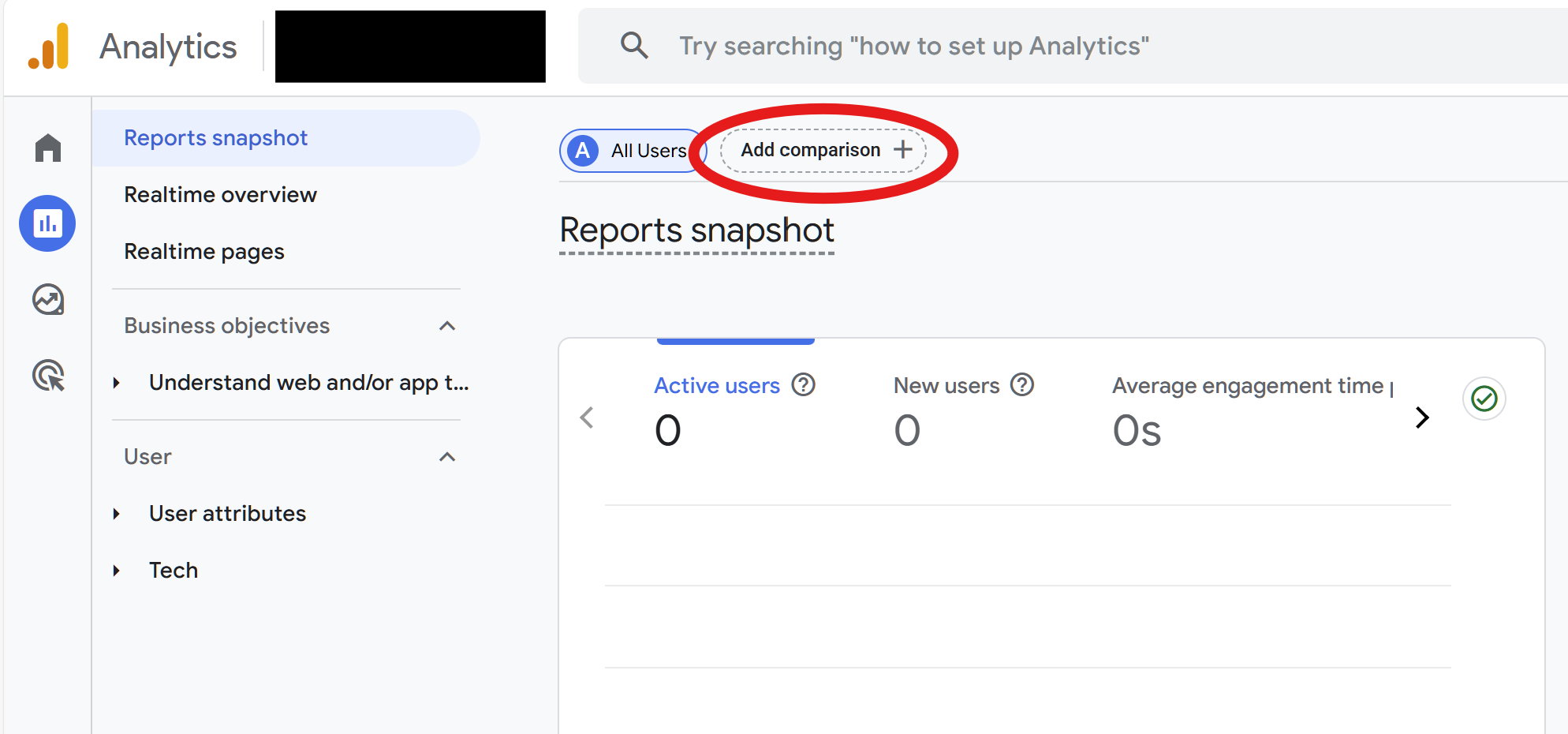 sensitive info is masked
 -
In
Apply a comparisonpage, clickCreate newto create a new comparison.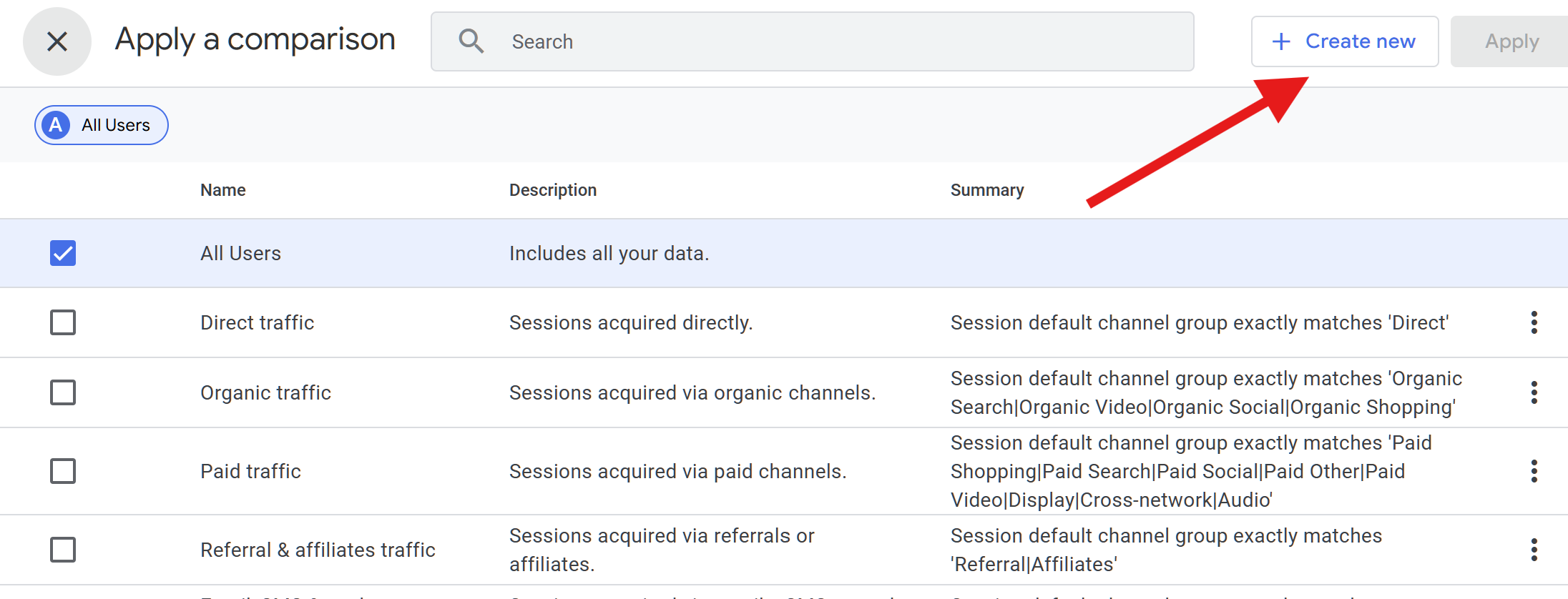
-
Select
HostnameinDimensionsection, feel free to chooseMatch Type(for simplicity,containsis a good option since you only need to entergithubif you are using GitHub Pages, instead ofyourusername.github.io), and enter your domain(or a part of), and clickSave(Applyis also okay but you are not able to save it as a preset, so you need to apply a comparison again next time).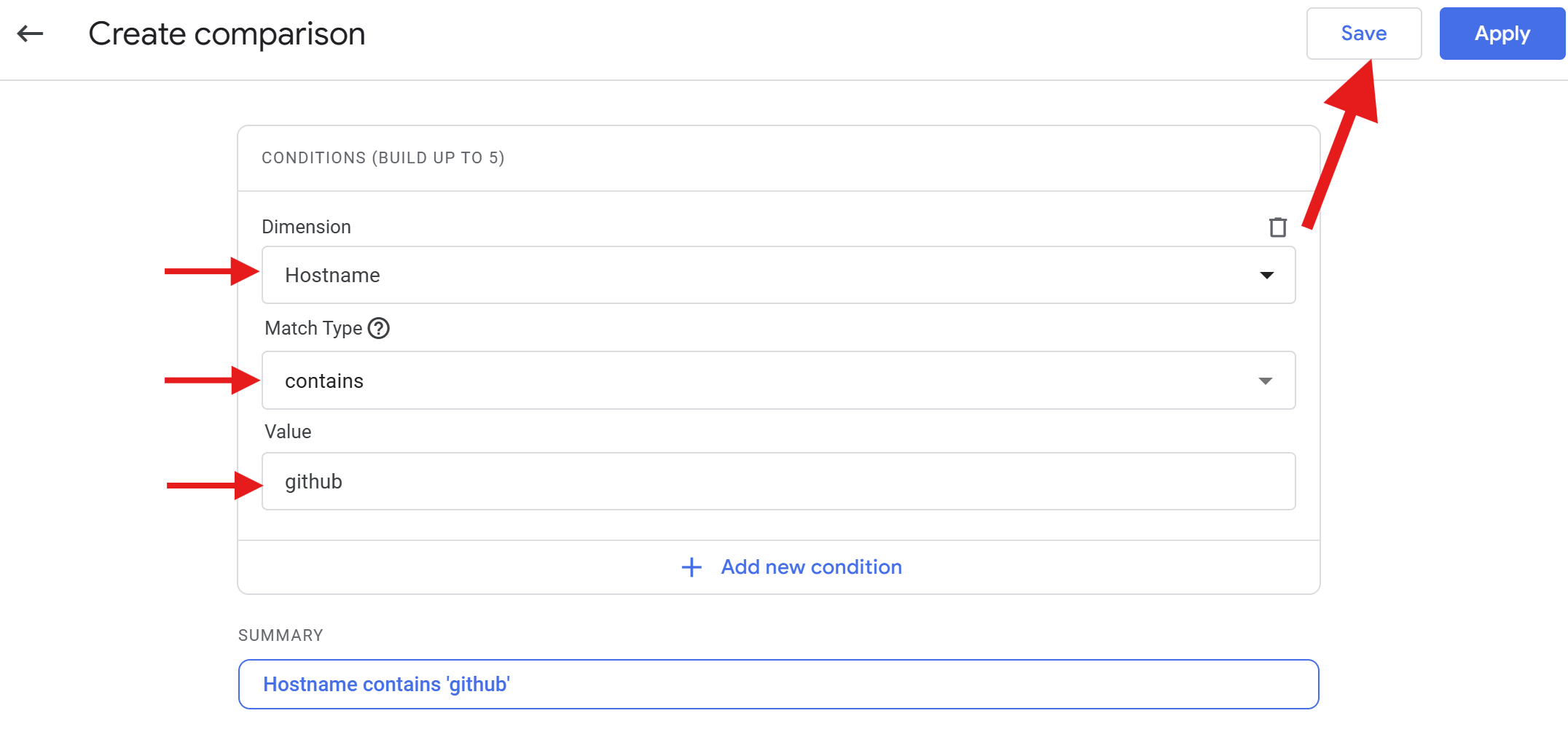
Info
The question mark says:
Match types are case sensitive, and regex is limited to 250 characters. To choose from a list of available dimension values, select “exactly matches”.
Since domain is not case sensitive, you need to enter it in lowercase and
hostnameis not from a list, we don’t have to selectexactly matches.
-
Name this comparison as whatever you like and
Confirm.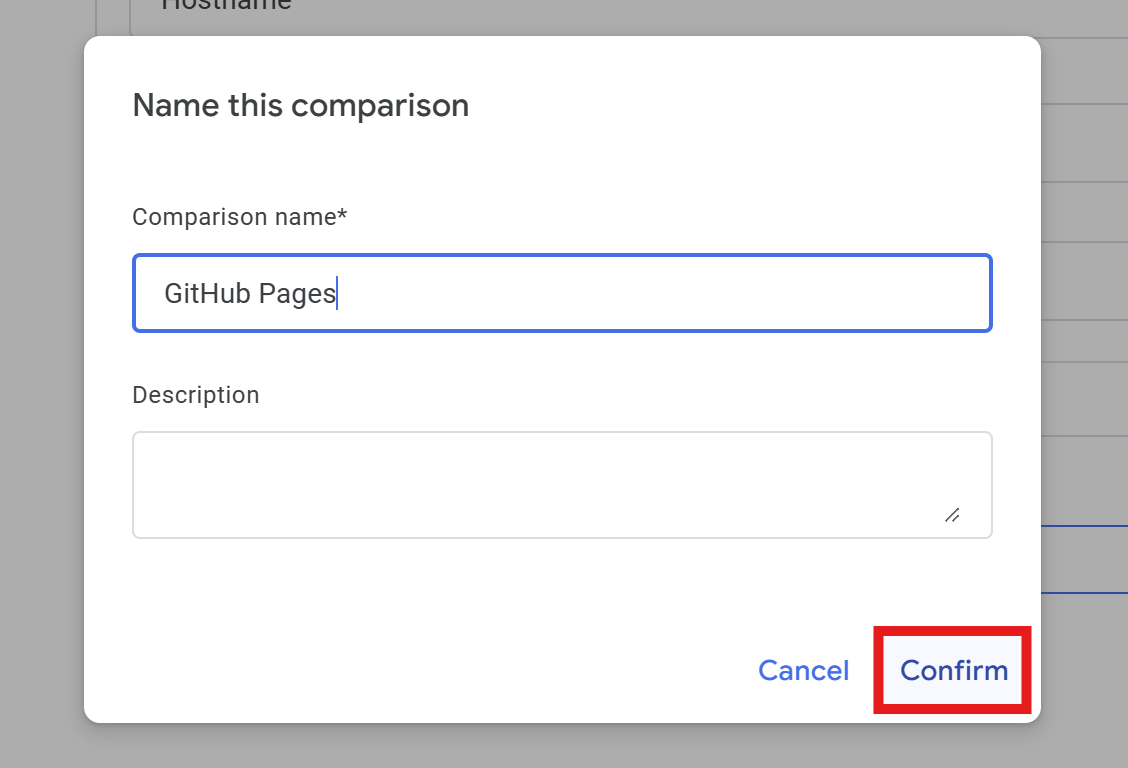
-
Now we have created and enabled a comparison, you can create more comparisons and enable/disable them in
Add comparisonsection as needed.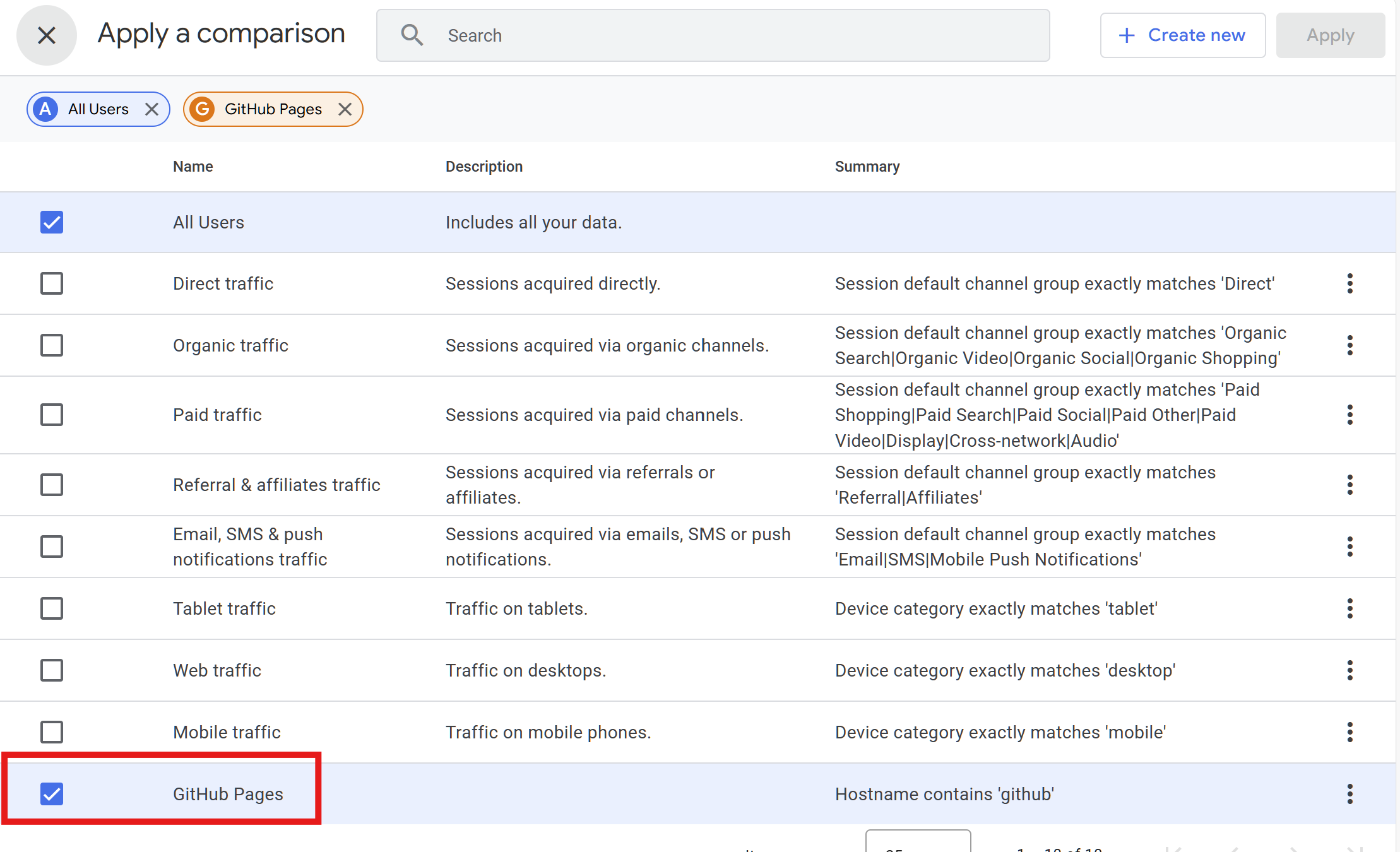
Link(s) may helpful
(Chinese) 博客接入 Google Analytics | Echo Blog
Reddit: One GA4 for multiple websites : r/GoogleAnalytics
[GA4] Apply comparisons to reports - Analytics Help
[GA4] Apply filters to detail reports - Analytics Help
Known issues
- obsidian takes centuries to load (until the official
syncplugin is on)